
Their phone is the menu.
Your kitchen works from a screen.
Table QR ordering, a till, kitchen screens, gift vouchers and sales — all in one. The customer menu speaks English, Korean and Chinese, and we train your team ourselves.
- Menus in English · 한국어 · 中文
- Unlimited devices
- Keep your EFTPOS
- No lock-in — month to month
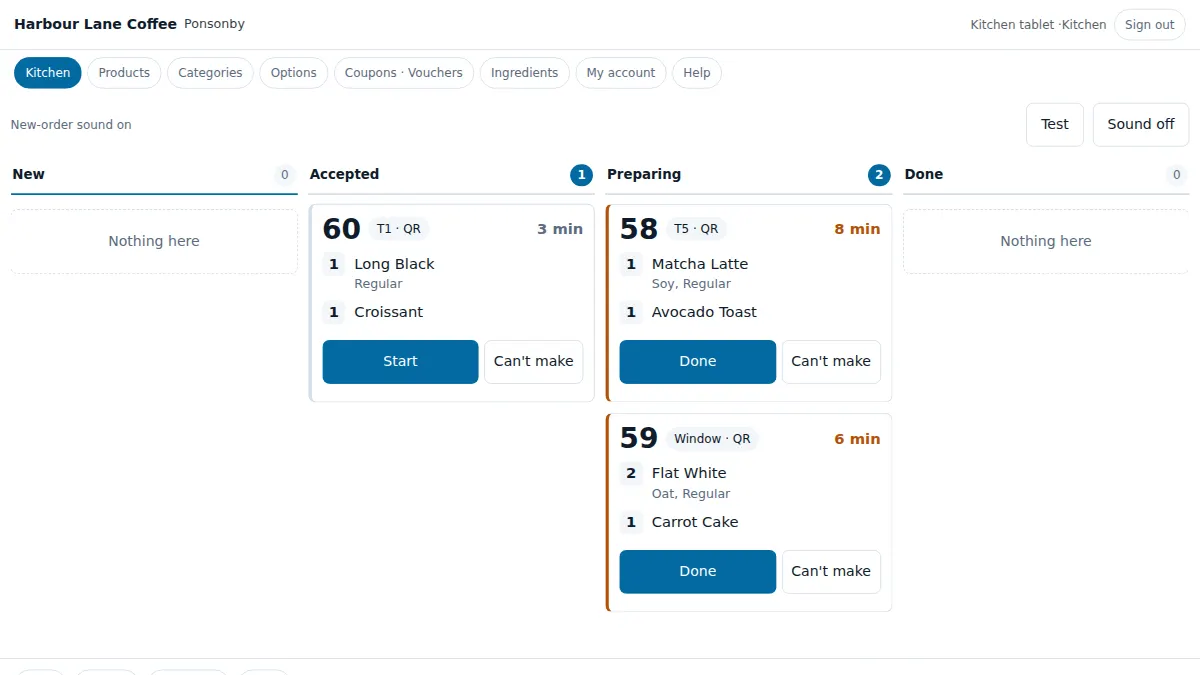
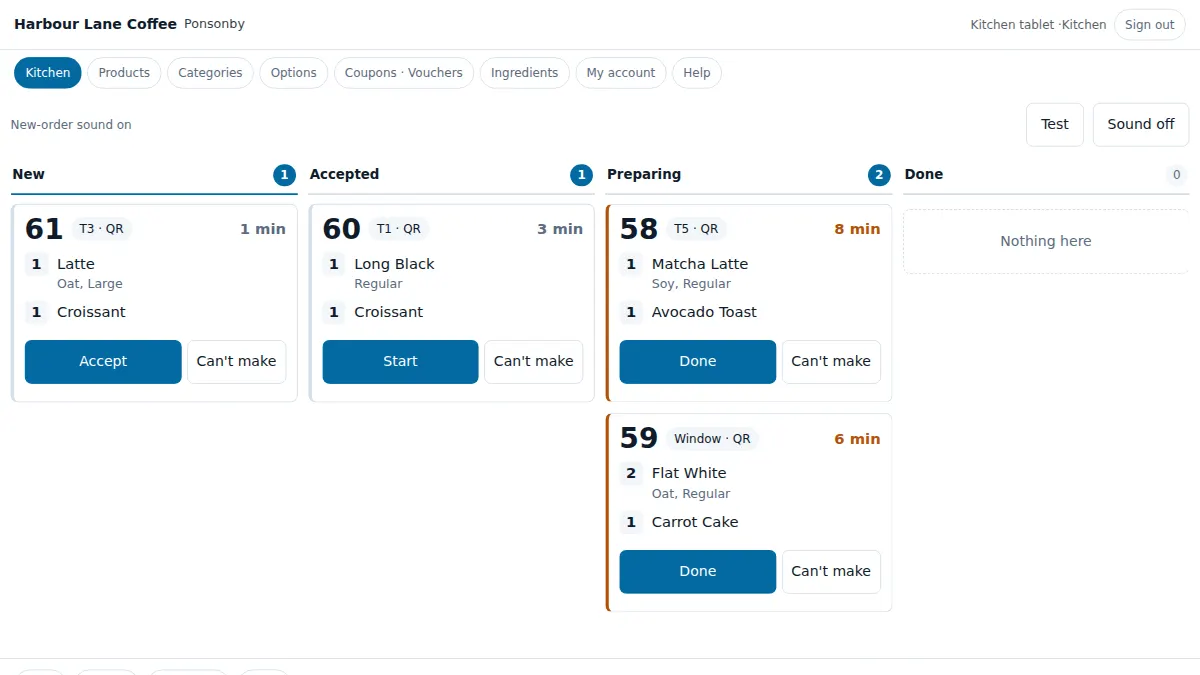
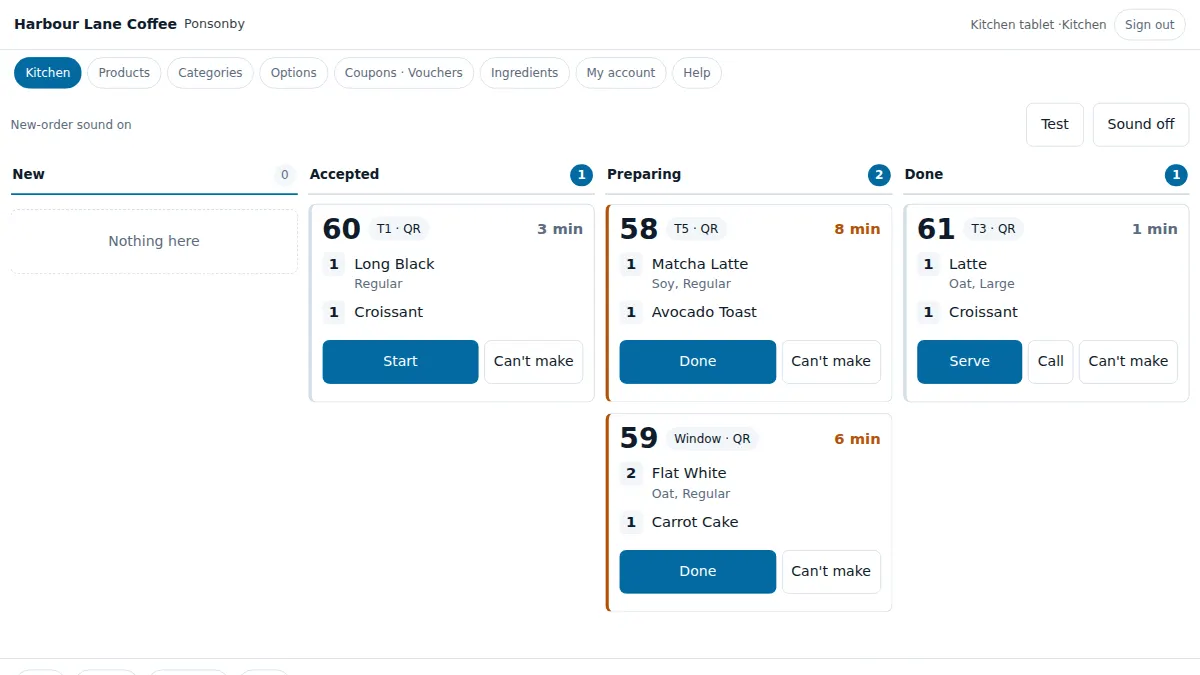
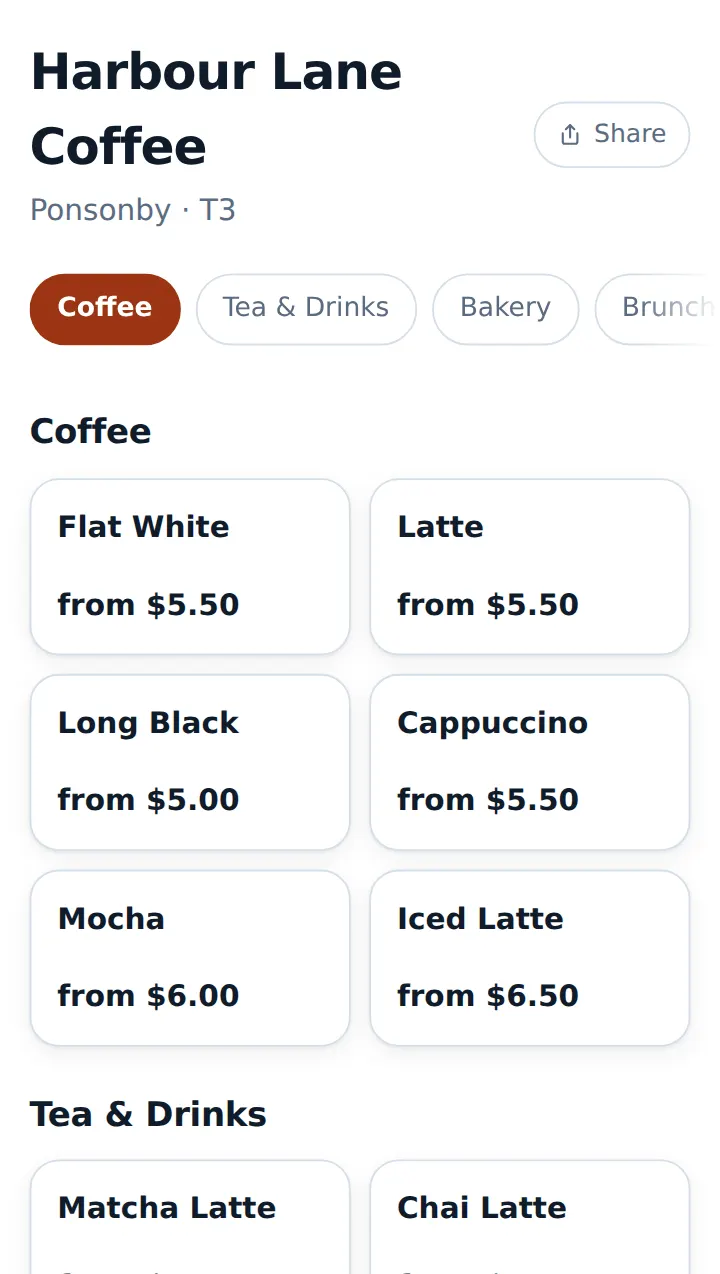
Screens show sample data from a fictional café.
How one order flows
Scan at the table
Customers point their phone camera at the QR sticker on the table. No app, no sign-up.
Order on their phone
They read the menu in their own language, pick options and order. Bank transfer and vouchers on their phone; card and cash at the counter.
Into the kitchen, in order
New → Accepted → Preparing → Done. No more paper dockets.
Their phone rings when it’s ready
Tap Done and the customer’s phone sounds and vibrates — even when locked, if they turned on notifications.
The till closes the day
Take payment, see payment methods and best sellers in Sales, and download a file to import into Xero.
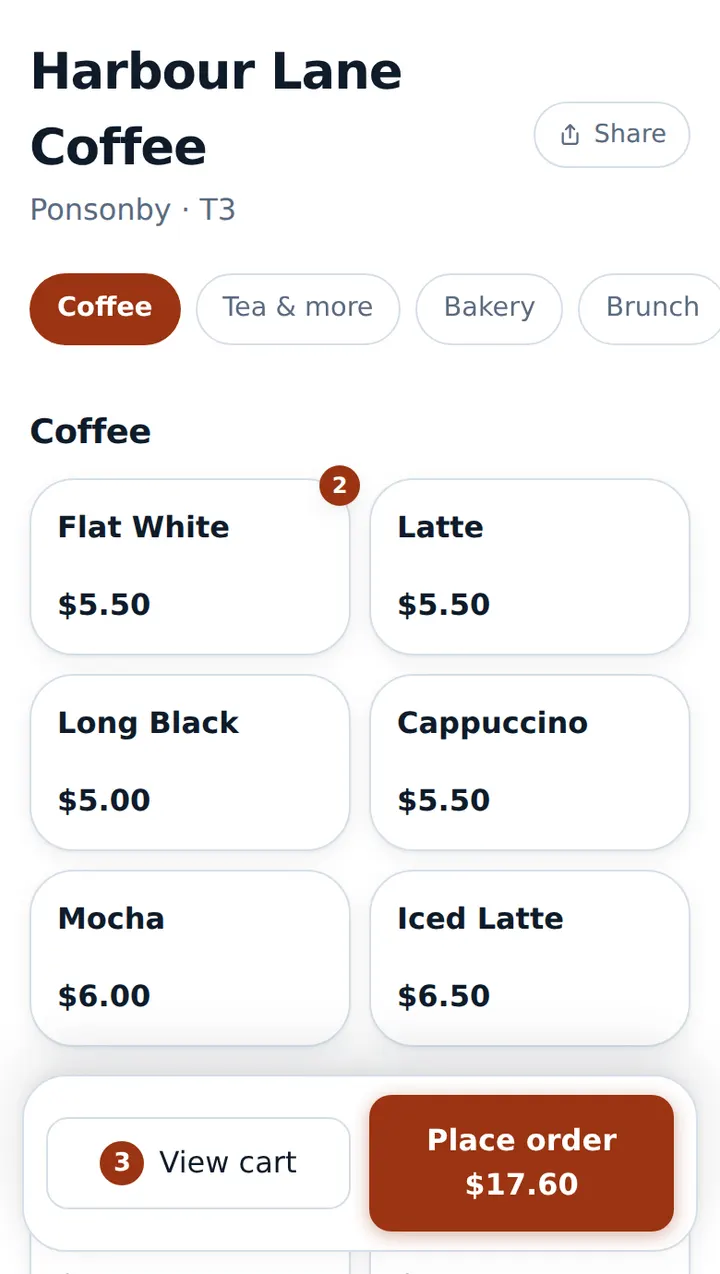
One QR per table. Their phone is the order pad.
Customers scan the table QR to open that table’s ordering page. Takeaway and counter customers order from your café address (yourcafe.tenvio.net).
- Print table QR stickers on A4 from the Tables & QR screen
- Customers choose English, Korean or Chinese — you enter menu names for each language
- Sold-out items are greyed out — run out of an ingredient and the items using it go with it
- Your café’s colour, header photo and menu layout (list, grid or large)
See details2
- Kiosk mode for a shared tablet — back to the start after 90 seconds
- No customer names or contact details needed — orders are called by number
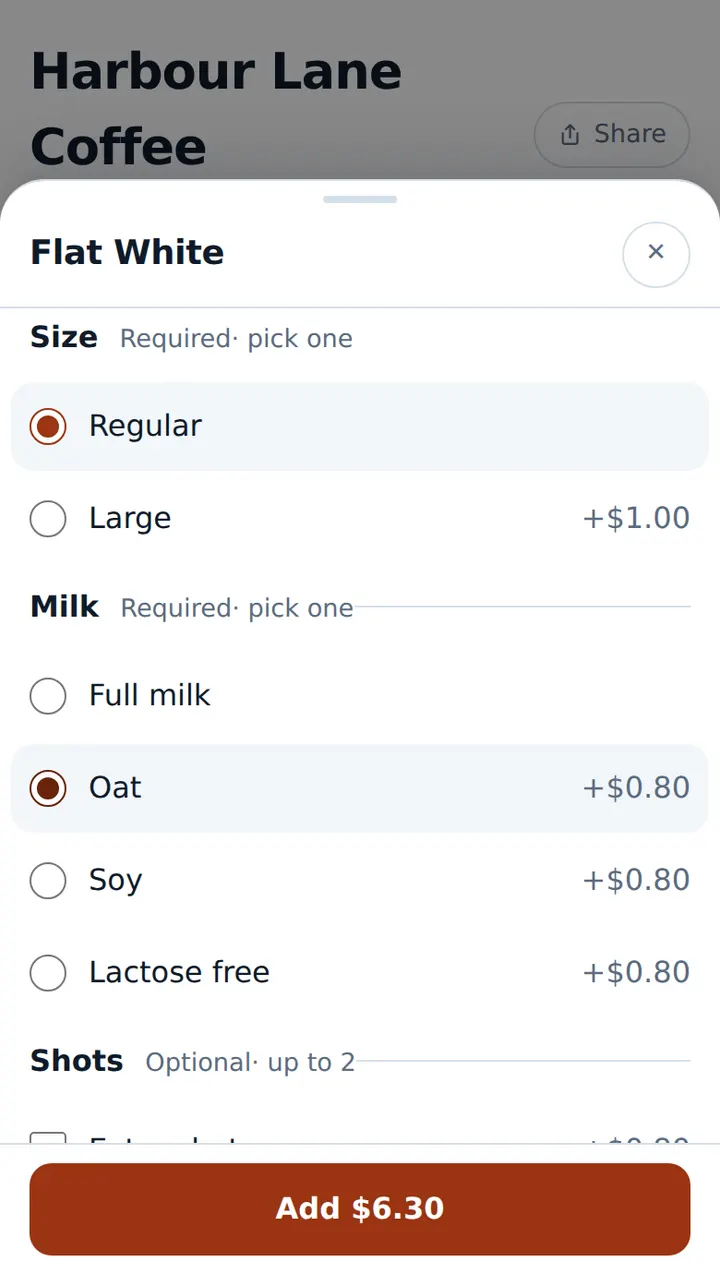
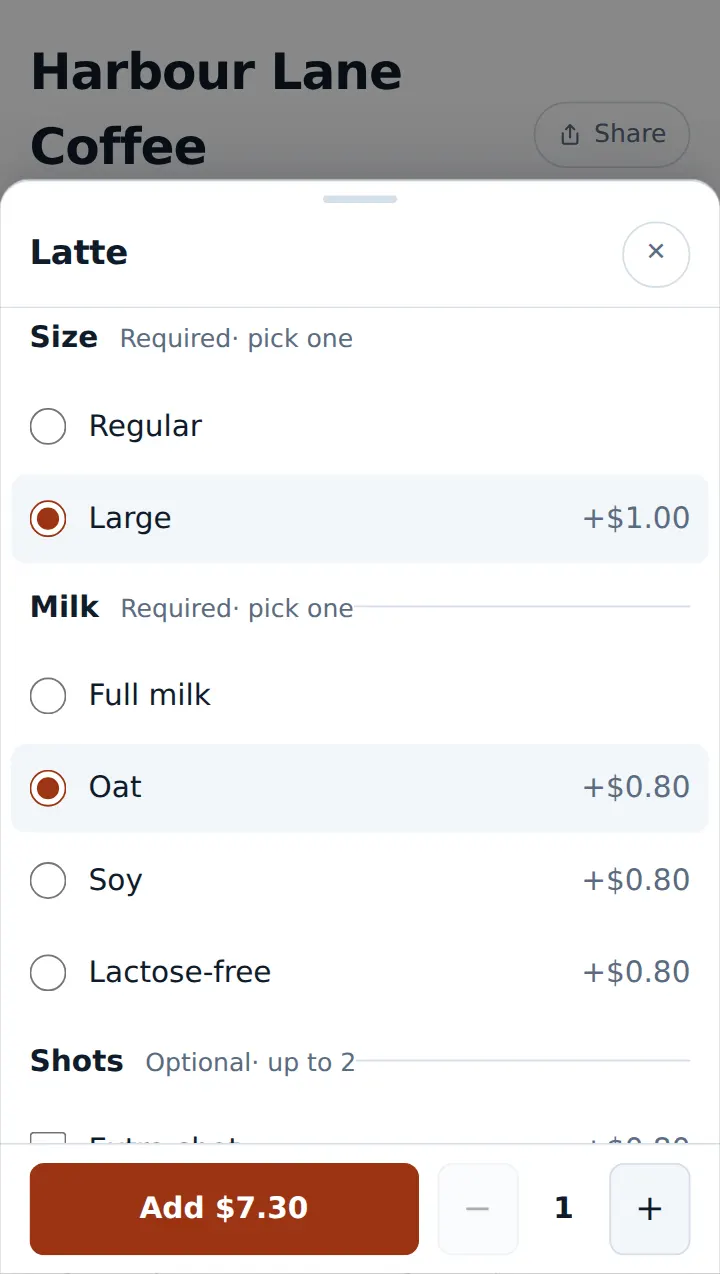
Pick options
Attach option groups like size, milk and shots as required or optional. Extras add straight onto the Add button.
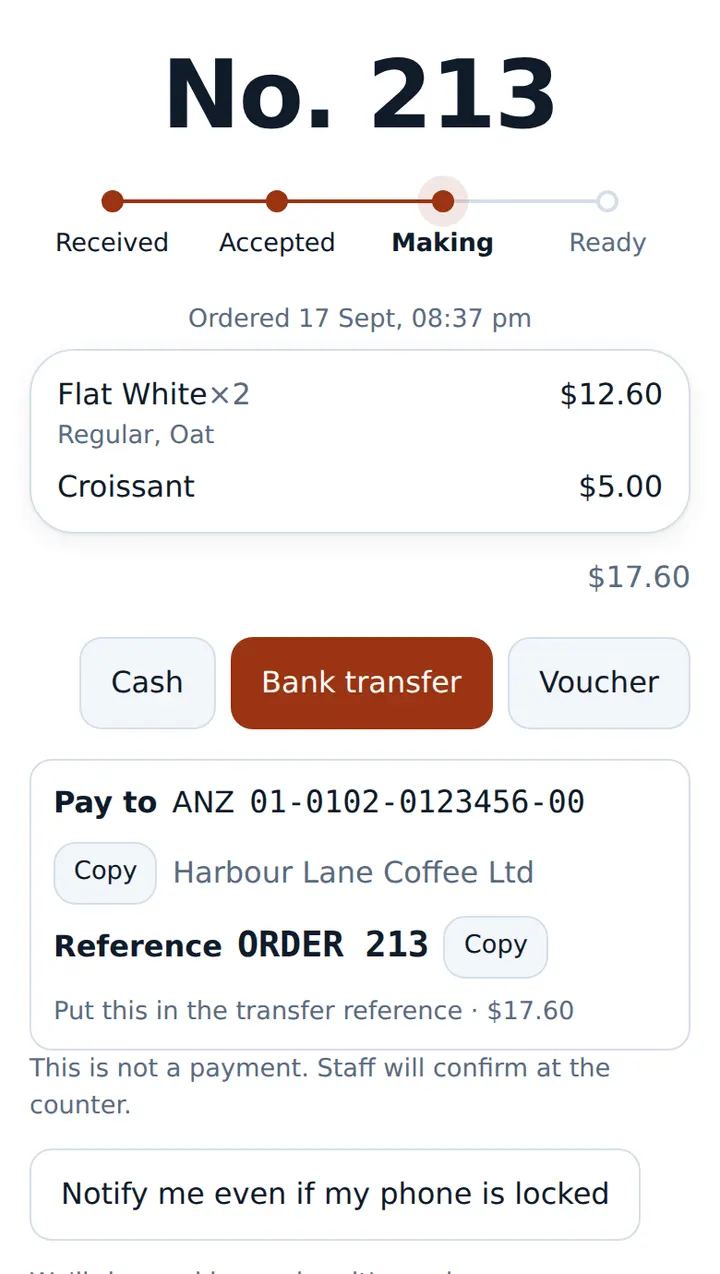
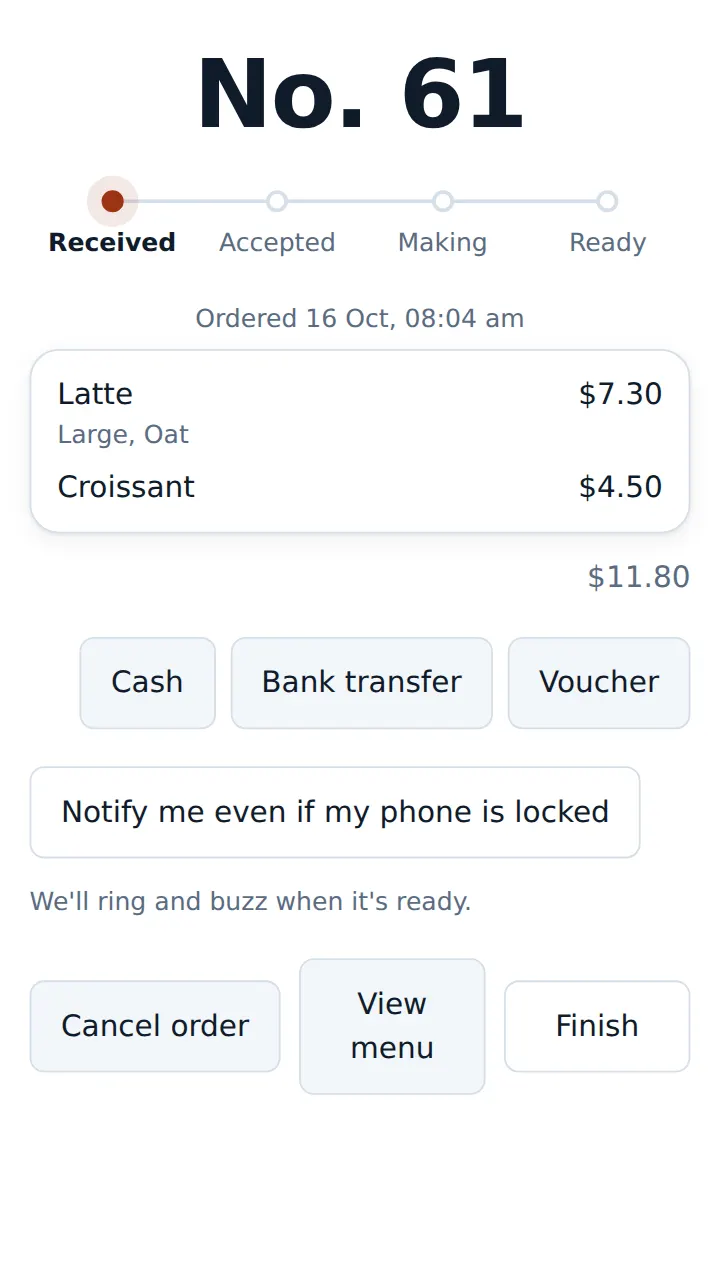
Pay after ordering
A big order number and progress steps. Choose bank transfer and your account and the reference (the order number) appear to copy; a voucher is used by entering its number. Card and cash at the counter.
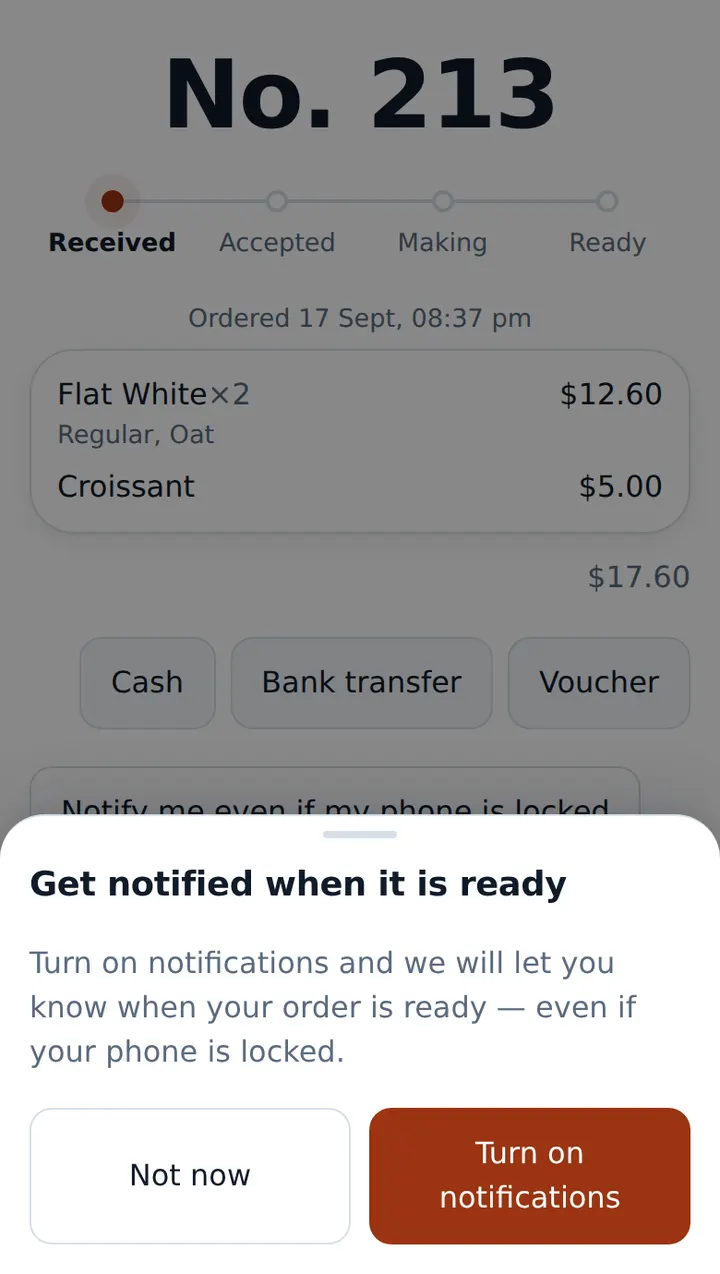
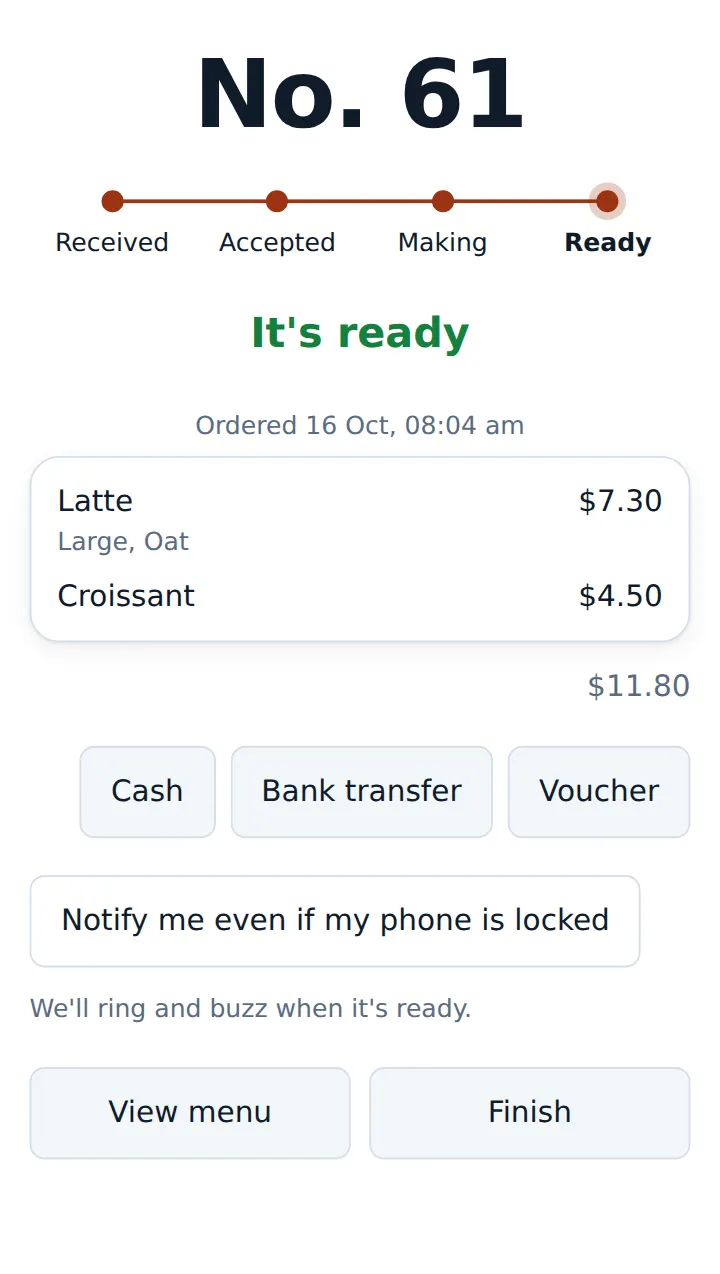
Ready alerts
With the page open, the phone sounds and vibrates; with notifications on, it alerts even when locked. Not collected? The kitchen taps Call to ring again. On iPhone, add to home screen first.
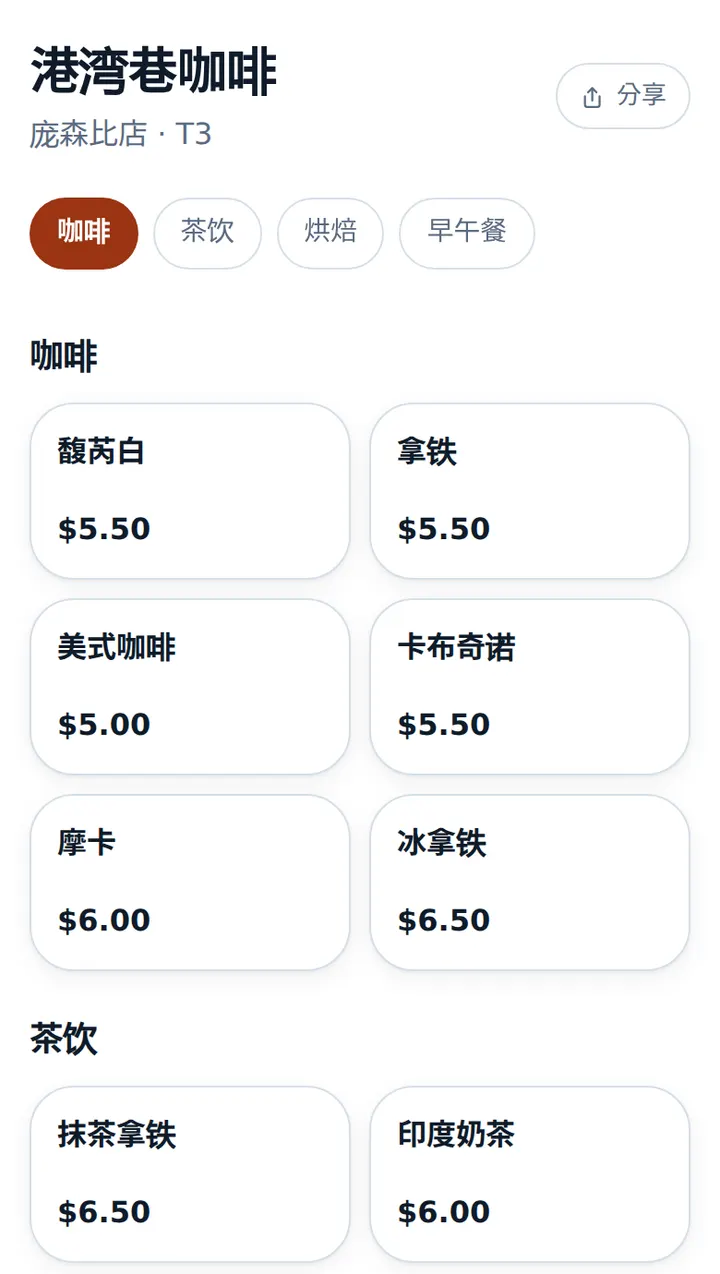
中文 · 한국어 · English
The same menu in the language the customer picks. No Chinese name? The English one shows. You choose which languages your customers see.
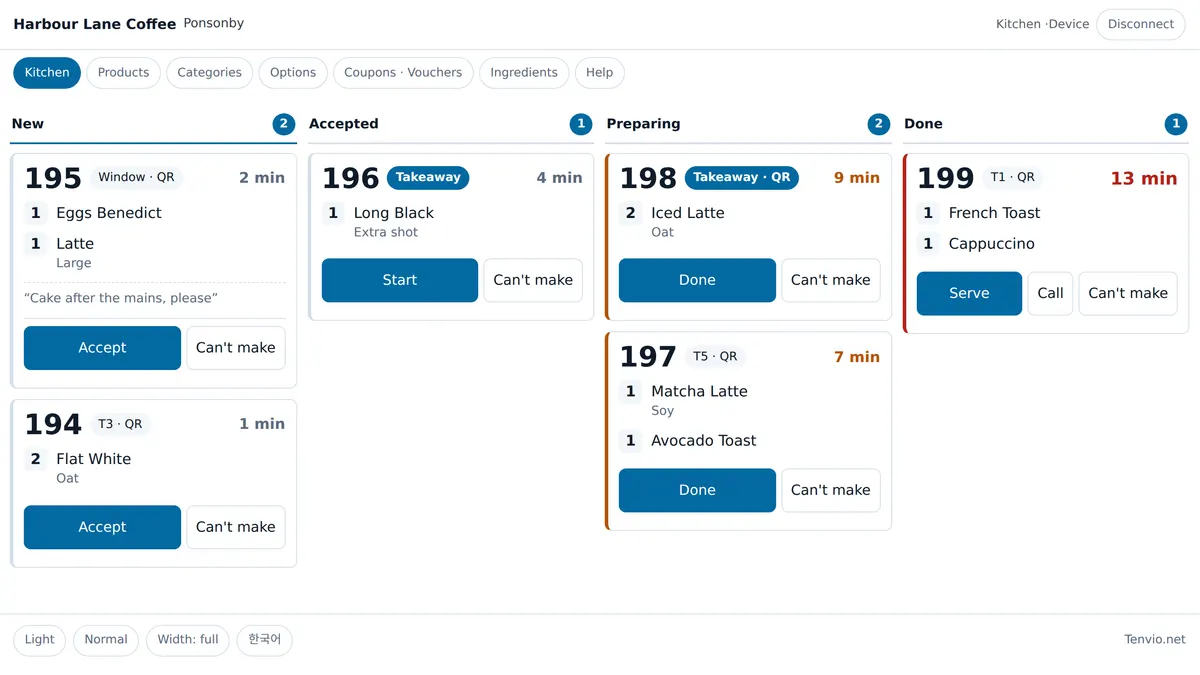
No paper dockets — the kitchen runs off one screen.
Orders appear in the order they came in, showing table or takeaway and how long each has waited. Orders kept waiting stand out by colour.
- Done? The customer’s phone rings — no more shouting names
- Not collected? Call them again from the screen
- Out of an ingredient? Every item using it sells out in one go
- Can’t make an order? The till knows straight away
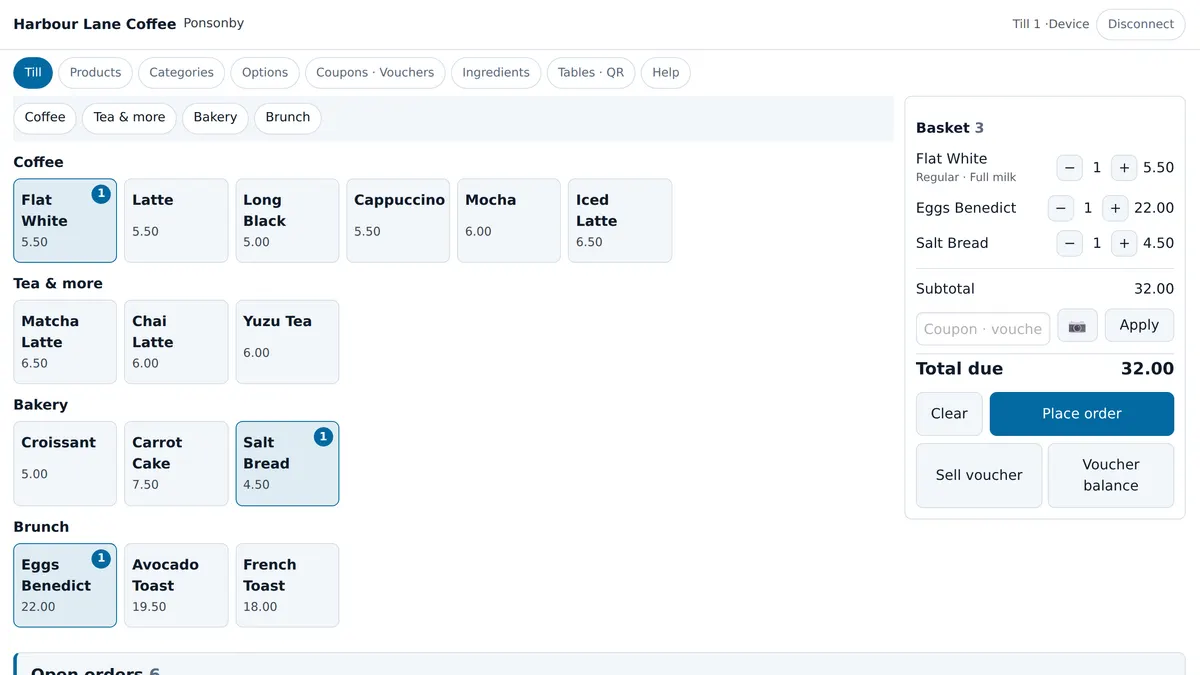
Counter orders and payments on one screen.
Counter orders and table QR orders land in one list and stay there until they’re paid — nothing slips through.
- Cash, card (EFTPOS) and voucher payments recorded in one place
- Scan coupons with a scanner or the tablet camera
- Print receipts on a Bluetooth printer (Android tablets)
- Refunds are for managers only — each role does its own job
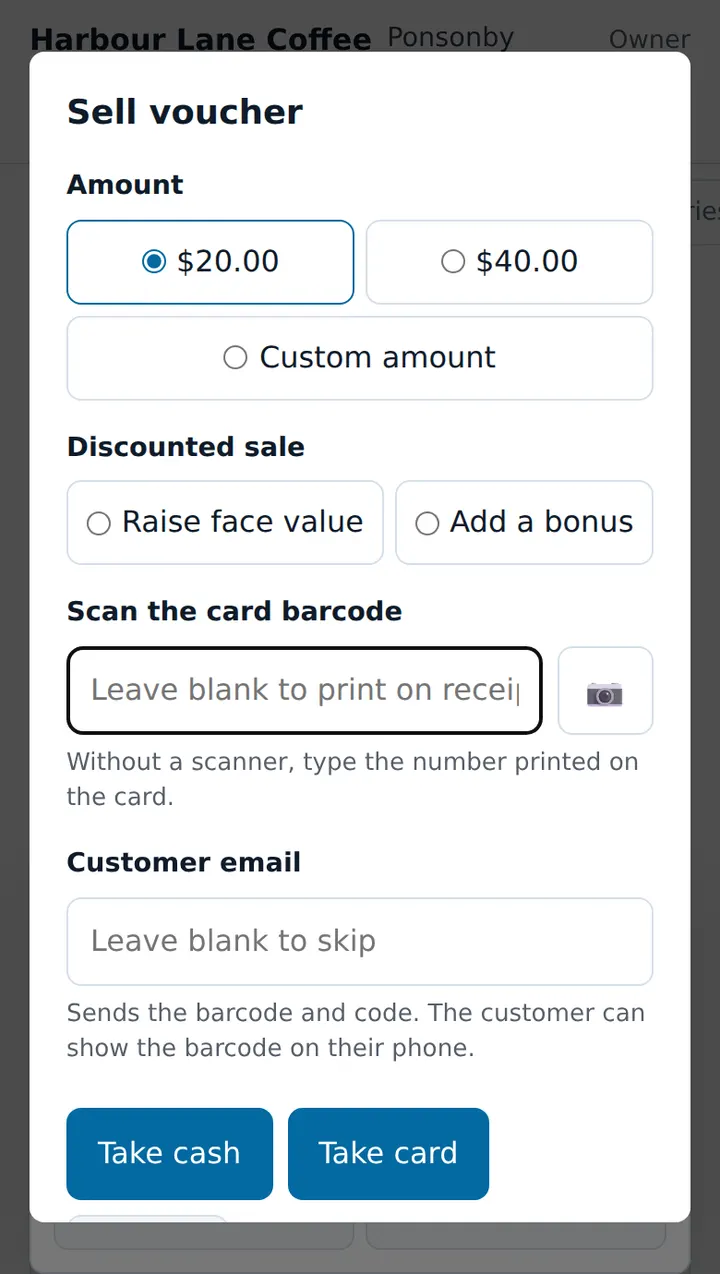
Gift vouchers keep regulars coming — and bring in new faces.
Sell them at the till or send them by email. Voucher money counts as sales when it’s spent, so your books stay straight.
- Printed on a receipt, as a display card, or sent by email — whatever the customer prefers
- Run deals like “pay $50, spend $55”
- Customers redeem on their phone with just the number
- Make discount coupons and print them to hand out
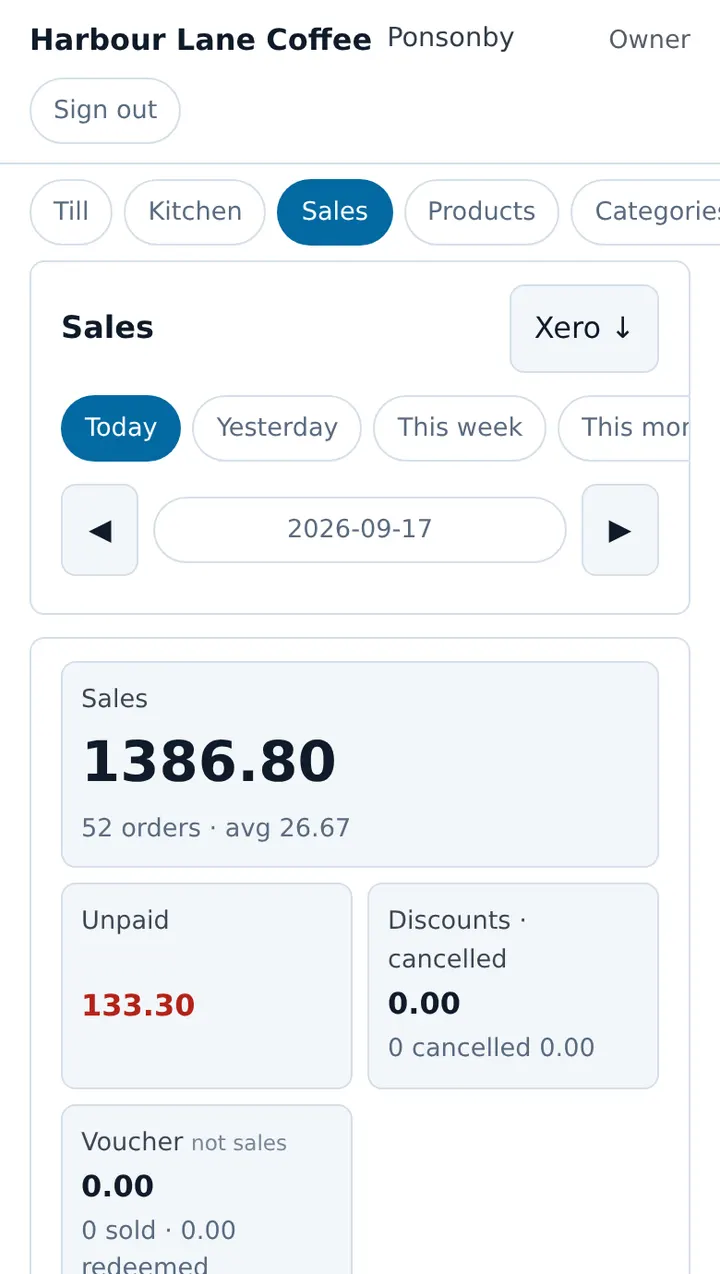
How much today, how it was paid, where it came from.
Sales for today, this week or this month, average order and anything still unpaid — on one screen.
- Totals by payment method make your EFTPOS settlement easy to check
- See your busy hours and how many orders come by QR
- Best sellers
- Download sales as a Xero import file (CSV)
Also included
Menu & options
Categories, items and option groups. Prices are what the customer pays (GST inclusive).
Ingredients & shopping list
Set a minimum, enter what’s left when you count, and a “to buy” list builds itself. Nothing is deducted automatically.
Staff & roles
Owner, manager, cashier, staff and kitchen. Cashiers don’t see sales or settings, and never get a refund button.
Training checklist
After training, each staff member works through a checklist — the owner sees who’s done what.
Multiple locations · Plus
Every location shares one menu; sold-outs, stock, tables, devices and sales are kept per location. The owner switches between them.
Staff screens in English & Korean
The till and kitchen each keep their own language — Korean in the kitchen, English at the till.
Keep taking payments the way you do now.
Tenvio never handles your money. It goes straight to your own terminal and bank account — Tenvio only charges for the software.
Card — your EFTPOS
Take card payments at the counter on the EFTPOS terminal you already have. There’s nothing new to buy or rent, and your Tenvio price is the same whichever terminal you use.
Bank transfer
The customer’s order page shows your account and the reference (the order number). Staff check the transfer in the bank app.
Cash & vouchers
Record cash at the till. Vouchers are scanned at the till, or customers enter the number on their phone.
Card fees stay as they are on your current EFTPOS plan — Tenvio adds no payment fees.
How we look after your café’s records
Devices, not staff logins
Shop tablets connect with a 6-digit code or QR. Devices see orders, the menu and tables — never sales, settings or staff. Lost one? Revoke it and it’s cut off at once.
Support only with your permission
Tenvio support can look in for 24 or 72 hours, only when your café allows it (view-only by default). You’re told by email and a banner on screen, and every visit is logged. Urgent faults, legal requests and security incidents are the exception, with a written reason.
Where data lives
On servers in Sydney, Australia.
However many devices you run, the monthly price stays the same
The free 30-day trial includes everything in Plus, menu photos too (1 location), counted from the day your account opens.
Start a 30-day trialTrial
- Everything in Plus · menu photos too (1 location)
- 30 days from the day your account opens
- Training once you choose a plan
Standard
- Table QR & counter ordering
- Till & kitchen screens
- Coupons & gift vouchers (by email too)
- Sales & Xero import file
- Unlimited devices · 1 location
- 5 staff · AI helper 50 uses a month
Plus
- Everything in Standard
- Photos on the customer menu · one per item
- 10 staff · AI helper 100 uses a month
- 2 locations included · $25/month each from the 3rd
- One menu across locations · sold-outs, staff, sales and Xero files per location
- Plus, even for one site: photos on the customer menu, 10 staff and twice the AI. Two sites? More features than two Standards ($138), and $19 less.
- All prices in NZD, excluding GST.
Setup is a one-off — paid once
We don’t just hand over a login. We work through the training course with you and check everything is live.
- One 2-hour training session working through the course (remote or on-site · on-site travel extra)
- Go-live check — table QR, devices and counter ordering switched on
- Enter the menu yourselves, or have us do it ($240, up to 80 items)
- You connect the printer following the guide — no model guarantee; we do one test print together in training
- 1:1 training, 2 hours (remote or on-site)
- A course guide your staff keep using
- Go-live check: table QR, devices and counter ordering
The trial is free — we just open your account, no training.
Rather we set it up for you?
Not included in the setup feeEvery feature is already in your plan. These are one-off fees for us to configure them for you — do it yourself and it’s free.
- Menu entry done for you (up to 80 items)$240
- Guest page layout set-up$180
- On-site device set-up (plus travel)$240
- Menu translation and photos$120
- Coupons and gift cards set-up$120
Once go-live support ends, settings changes and extra training are $120/hour.
Need a feature we don’t have? Tell us and we’ll quote for building it. If other businesses could use it too, we build it into Tenvio and keep maintaining it, so you pay only part of the quote — and you get it first.
Questions
Do customers need an app?
No. Scanning the QR opens the menu in their phone browser — no login or sign-up.
What tablet do I need?
Any tablet, PC or phone with a browser runs the till and kitchen screens. Bluetooth receipt printing needs a Chrome-family browser (Chrome, Edge, Samsung Internet) and a BLE receipt printer — it doesn’t work in Safari on iPad.
Do I have to change my EFTPOS?
No, keep it. There’s no terminal integration yet, so counter card payments are keyed into the terminal.
Can customers pay by card on their phone?
No. Cards are taken at the counter on your EFTPOS. On their phone, customers can pay by bank transfer or with a voucher.
What if the internet drops?
Ordering, kitchen and till screens need an internet connection. There’s no offline mode yet — if your café Wi-Fi is patchy, keep a phone hotspot ready as a spare connection.
Who enters the menu?
We go through it once together in training, then your staff enter the menu. Prices are what the customer pays (GST inclusive).
Do you train us during the trial?
No. The trial is for trying it yourself, so we just open your café’s account. Place an order at the practice café, then follow Help in the app to enter your menu. Training and the go-live check come with the setup fee once you choose a plan.
Is there a lock-in term?
No. It’s month to month and you can cancel any time. The one-off $645 setup fee covers go-live and one training session.
Try it in your café for 30 days.
Send us a request and we’ll be in touch within one business day. We’ll open your café’s account so you can start straight away.
Request received
We’ll contact you within one business day. Thank you.
Prefer to talk? Contact us directly